Scroll With Eye
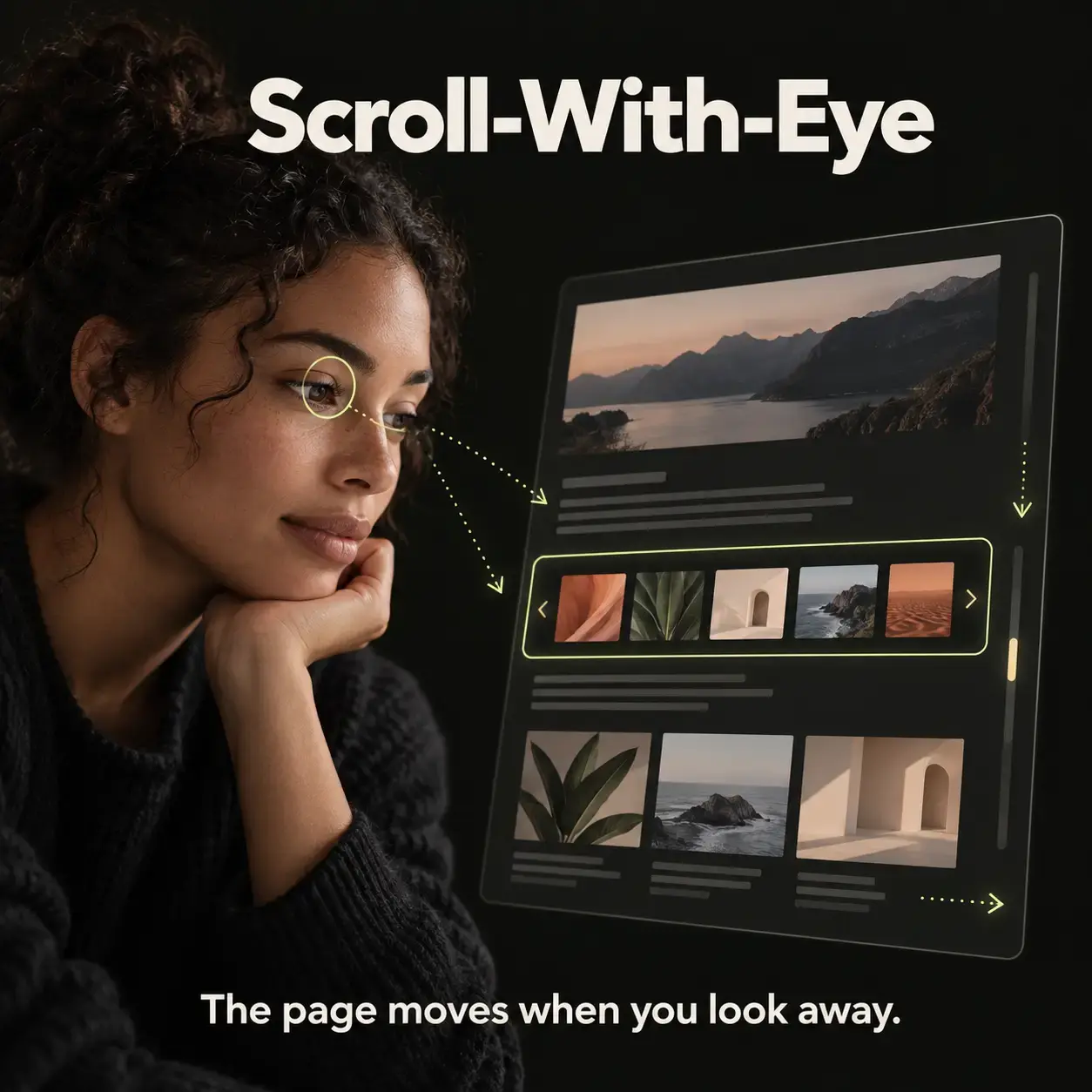
Scroll-With-Eye turns your gaze into scrolling: look toward the edge of the page and it moves; double-blink on a section and that panel scrolls instead—including sideways when it overflows. The webcam stays in the browser, nothing is uploaded, and a click to start is all it takes.
By Ranjith Kumar Kakkarayil · Published · Updated
Scroll With Eye: Hands-Free Scrolling with Just Your Webcam
Your hands are covered in flour and the recipe is halfway down the page. You're eating lunch at your desk and reading a long article. You're playing guitar from a chord sheet that won't fit on one screen.
In each case you just want the page to move without touching anything.
Scroll With Eye does that. Look toward the bottom of the screen and the page scrolls down. Look back to the middle and it stops. Double-blink at a section, like a carousel or a wide table, and that section scrolls instead, sideways if it needs to.
It runs entirely in your browser. Your camera video is never uploaded anywhere.
Try it: scroll-with-eye.ranjithkumarkakkarayil.com · Code: GitHub
Trying it
- Open the demo in Chrome or Edge (the most reliable browsers for camera tracking).
- Click Start and allow camera access.
- Look at the middle of the screen until the status changes. That look is saved as your "center".
- Look down, and the long page moves. Look back to the middle, and it stops.
- Move the ring onto the row of cards until it's outlined in lime, then blink twice. The panel will say it's scrolling the card row. Now look left and right.
- Double-blink with the ring on an empty part of the page to hand scrolling back to the whole page.
The first start downloads the eye-tracking model, so you need an internet connection once.
How a look becomes a scroll
Scroll With Eye uses Google's MediaPipe Face Landmarker, which finds points on your face in each webcam frame. Turning that into comfortable scrolling took a few careful steps:
- It tracks your eyes, not your head. The iris position is measured inside each eye socket. If you turn or shift your head while your eyes stay centered, nothing scrolls. Only moving your eyes does.
- It smooths the signal. Raw eye positions jitter a lot, so they're smoothed before anything moves.
- It calibrates to you. Webcams sit above the screen, so looking straight at the screen reads to the camera as looking slightly down. The first moment of tracking is saved as your center, and every scroll is measured from there.
- There's a dead zone. Small, natural eye movements around the center do nothing, so the page isn't constantly creeping while you read.
- Speed follows distance. A glance toward the edge scrolls slowly. Looking further scrolls faster.
- Blinks are deliberate. One blink means both eyes closing and opening together. Two blinks within about 450 milliseconds select the section under the ring. A single blink does nothing, and neither does a wink, so normal blinking never triggers anything.
The ring is a rough aim from the middle of the screen, meant for large sections like galleries, card rows and boards, not for pressing small buttons.
Add it to your own page
Scroll With Eye is also a small plugin you can drop into any website:
<script type="module">
  import { EyeScroll } from "/plugin/eye-scroll.js";
  EyeScroll.start({ sectionSelector: "[data-eye-section]" });
</script>

<section data-eye-section="Gallery" style="overflow: auto">...</section>
Mark any scrollable area with data-eye-section, and the value becomes the name shown in the control panel. When nothing is selected, the whole page scrolls. start() returns a stop() function that turns off the camera and removes the panel.
Browsers only let a page open the camera after a click, so the plugin draws a small panel with a Start button for that.
Privacy first
Webcam features make people nervous, and they should. So here's exactly what happens:
- The eye-tracking model runs locally in your browser.
- Video frames are processed and thrown away on your device.
- Nothing is uploaded. There's no server receiving video, because there's no server at all. The demo is static files.
Who is this for?
- Cooking, crafting or repairing, when your hands are busy or dirty.
- Reading while eating, or any time reaching for the trackpad is a hassle.
- Musicians reading sheet music or chord charts.
- Accessibility. For people with limited hand mobility, gaze-based scrolling can make long pages much easier to use. This is an experiment, not a medical-grade assistive tool, but it shows how far a plain webcam can go.
Under the hood
- MediaPipe Face Landmarker for face and iris landmarks.
- Plain JavaScript modules with no framework.
- Automated tests for the gaze math, the blink timing and which section a point lands on. None of them need a camera.
- Hosted as a static site on Netlify.
What I learned
The model was the easy part; MediaPipe is excellent. The hard part was making scrolling feel calm. Without the dead zone, smoothing and calibration, the page drifts and stutters and it's exhausting to use. Most of the work was tuning it until it felt like the page was simply following your attention.
Give it a try, ideally with your hands in a bowl of dough.